
The roster that starts from your time clock.
Most rosters start as a blank grid. Clockie already knows who worked when, so it can draft next week from what actually happened, tell you why it proposed each shift, and send the week to your team by email, text or WhatsApp. Built in New Zealand and included in the $29/mo NZD plan.
14-day free trial. No credit card. Cancel anytime.
Three things a blank grid cannot do
One
Starts from what actually happened
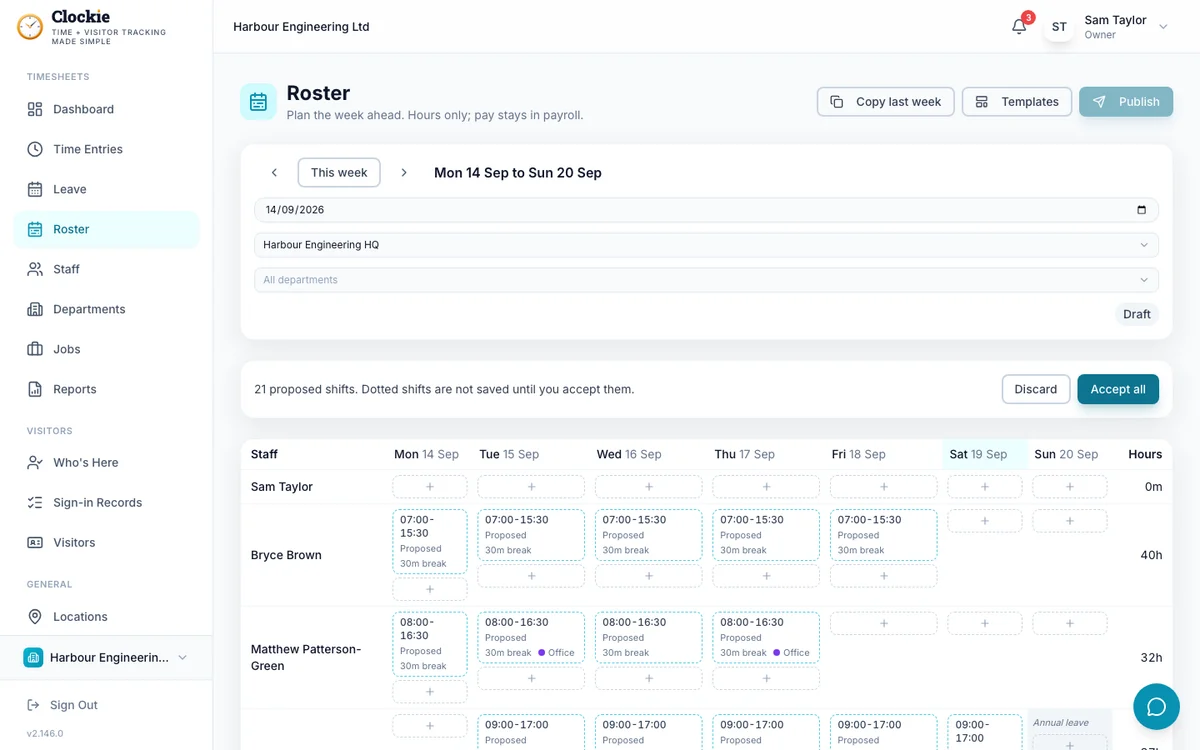
Your team has been clocking in for months before you build a roster. Clockie looks at the last eight weeks. When someone worked the same weekday in at least four of them, it proposes that shift at their usual start and finish, rounded to 15 minutes. You start from a real week, not an empty one.
- No setup: it reads the clock-ins you already have
- Skips anyone on approved leave that day
- Or, inside Clockie, import the roster you have: paste it, or upload a photo of the whiteboard
Two
Shows its working
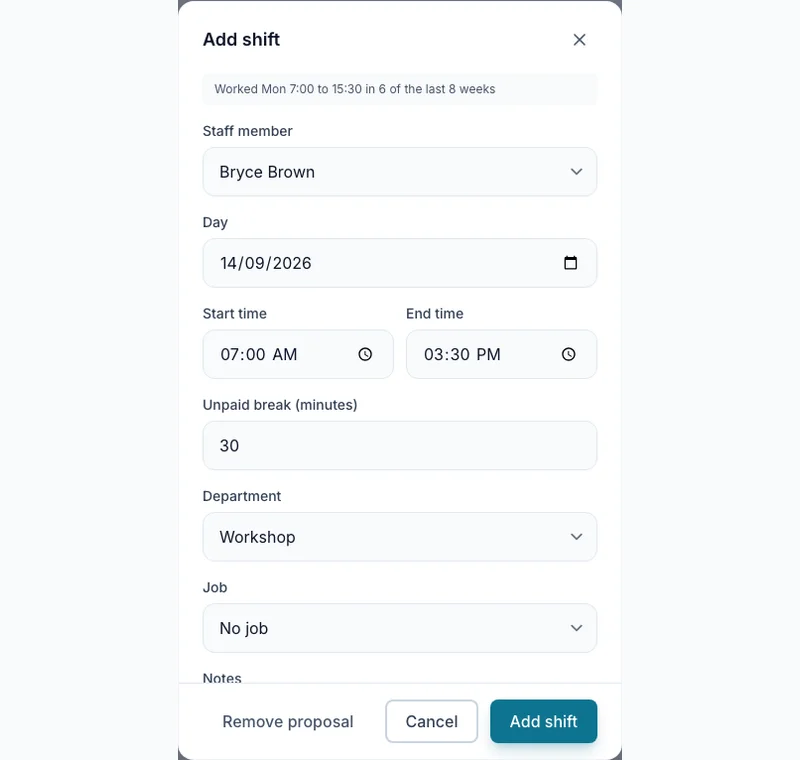
Every proposed shift carries a plain reason, such as “Worked Tue 8:00 to 16:00 in 6 of the last 8 weeks”. Open a dotted shift to read it. Proposals stay dotted until you accept them, and the week stays a draft until you publish.
Three
Built around NZ rules
The grid marks the 11 national public holidays, on the Mondayised date when one falls on a weekend, and shades anyone on approved leave. Each shift carries its unpaid break, with a default you set once. The Rostered vs Actual report has a public holiday column so payroll can apply the right rules. The roster shows hours only.
For the rules themselves, use our free break calculator, which follows Employment New Zealand’s rest and meal break table, and the public holiday planner, which lists Employment New Zealand’s dates with the regional anniversary days and explains how Mondayisation applies to each employee.
This is general information, not legal advice. For specific situations, talk to an employment law specialist or your advisor.
A weekly roster, tied to the hours people really work
A week grid per location
Staff down the side, Monday to Sunday across the top. Add a shift in two taps, with a start, a finish and an unpaid break.
Copy last week, or use a template
Most weeks look like the last one. Copy it forward, or save a week as a named template and apply it whenever you need it.
Leave is already on the grid
Approved leave shades the cell, so you see who is away before you roster them.
Publish by email, text or WhatsApp
Staff with an email address get an email. Everyone else gets a text message, or WhatsApp if they have opted in. You see the SMS estimate before you confirm, and publishing again tells only the people whose shifts changed.
Shifts on their own phone
Each person sees their upcoming shifts on their personal clock page. No app store, no password to forget.
Rostered today, on the kiosk
The kiosk lists who is rostered today. Clock in early, or without a shift, and it shows a one-line note and carries on.
On time, early, late or unrostered
Every clock-in is matched to the published shift and badged on Time Entries and Approvals, so the exceptions stand out.
Rostered vs Actual report
Planned hours beside actual hours for each person and day, with the difference and a CSV export. Hours only, never dollars.
Read-only API
Fetch published shifts and roster weeks from the public API to show the roster somewhere else.
The clock never waits for the roster
A roster is a plan, and plans change. Clocking in never depends on it: someone who is not rostered can always clock in, online or offline, and the entry is simply badged unrostered for you to review. There are no pay rates or dollar figures anywhere in the roster. Pay stays in your payroll system.
Try it on next week’s roster
Type in who usually works when and get a Monday to Sunday week with the NZ rest and meal breaks worked out for every shift and public holidays marked. Everything you type stays in your browser unless you email the roster to yourself. Bringing in a roster you already have is a Clockie feature, on the Roster page once you are signed up.
Weeks run Monday to Sunday. Pick any day and we use its Monday.
Included, not an add-on
$29a month NZD + GST, roster included
- 5 staff
- then $2 each a month
- 1 location
- then $10 each a month
- 25 SMS
- a month, then 10c each
- always free
20 staff on one site: $59 a month
What it does not do
Clockie’s roster is deliberately small. It does not build a roster from sales forecasts, it does not cost shifts in dollars, and staff cannot trade shifts with each other in it. If those are the reason you are buying, a dedicated rostering platform will suit you better, and our comparisons say so.
Compare Clockie with Deputy, Droppah, RosterElf, RosterMates and Timble.
Rostering, answered
Is the roster included in the Clockie price?
Yes. The roster is part of the $29 NZD a month plan for every business that uses the staff time clock. There is no per-user roster fee and no higher tier to unlock it. You switch it on in Settings when you are ready.
Do staff have to be rostered to clock in?
No. Clocking in never depends on the roster. Someone without a shift can always clock in, online or offline. The kiosk shows a one-line note and the entry is badged unrostered for you to review.
How does Clockie draft a week from history?
On an empty week, choose Start from what actually happened. Clockie reads the last eight weeks of clock-ins and proposes a shift wherever someone worked the same weekday in at least four of them, at their usual start and finish rounded to 15 minutes. Each proposal shows its reason, and the option appears once you have four weeks of clock-ins.
Can I bring in the roster I already have?
Yes, once you are a Clockie customer. Inside Clockie, choose Import your roster and paste the week as text, such as a spreadsheet or a message, or upload one photo of the whiteboard. It is read into proposed shifts and the names are matched to your staff list, and anything it cannot match is listed for you to decide. The photo is read once and never stored. The free generator on this page does not do this.
How do staff find out about their shifts?
When you publish, staff with an email address get an email and everyone else gets a text message, sent over WhatsApp for staff who have opted in. You can change the channel each time you publish and you see the SMS estimate first. Staff also see their shifts on their personal clock page.
Does the roster work out breaks and public holidays?
Each shift carries an unpaid break, filled in from a default you set, and the grid marks the 11 national public holidays. Regional anniversary days are not marked. The roster does not decide which breaks the law requires for a shift; our free break calculator does that from the shift length.
Guides and free tools
Plain, sourced guides to rostering in New Zealand, and tools that need no account.
- Free roster generator
- Roster templates by industry
- NZ break calculator
- Public holidays 2026 and 2027
- Rostering software NZ 2026: what it actually costs in NZD
- Rest and meal breaks in NZ by shift length
- Cancelling a shift in NZ: notice, compensation and the roster
- The Employment Leave Act 2026 and the notional roster
Start from a real week, not a blank grid
Start a 14-day free trial. No credit card. The roster is included.