
Verified hours, written as a SmoothPay Flexi-CSV
Clockie turns clock-ins into approved timesheets and writes them as transaction rows for SmoothPay’s Flexi-CSV importer — one row per shift, carrying the badge, pay code, units and date. You map the columns once and import from then on.

SmoothPay goPayroll
Receives a timesheet file already shaped to its import spec.
- Export format
- Flexi-CSV transaction rows (.csv)
- Employee matching
- SmoothPay badge
- Date format
- DD/MM/YYYY
- Pay codes
- SmoothPay codes and aliases
How it works
From clock-in to pay run in four steps — the hours do the walking.
Staff clock in
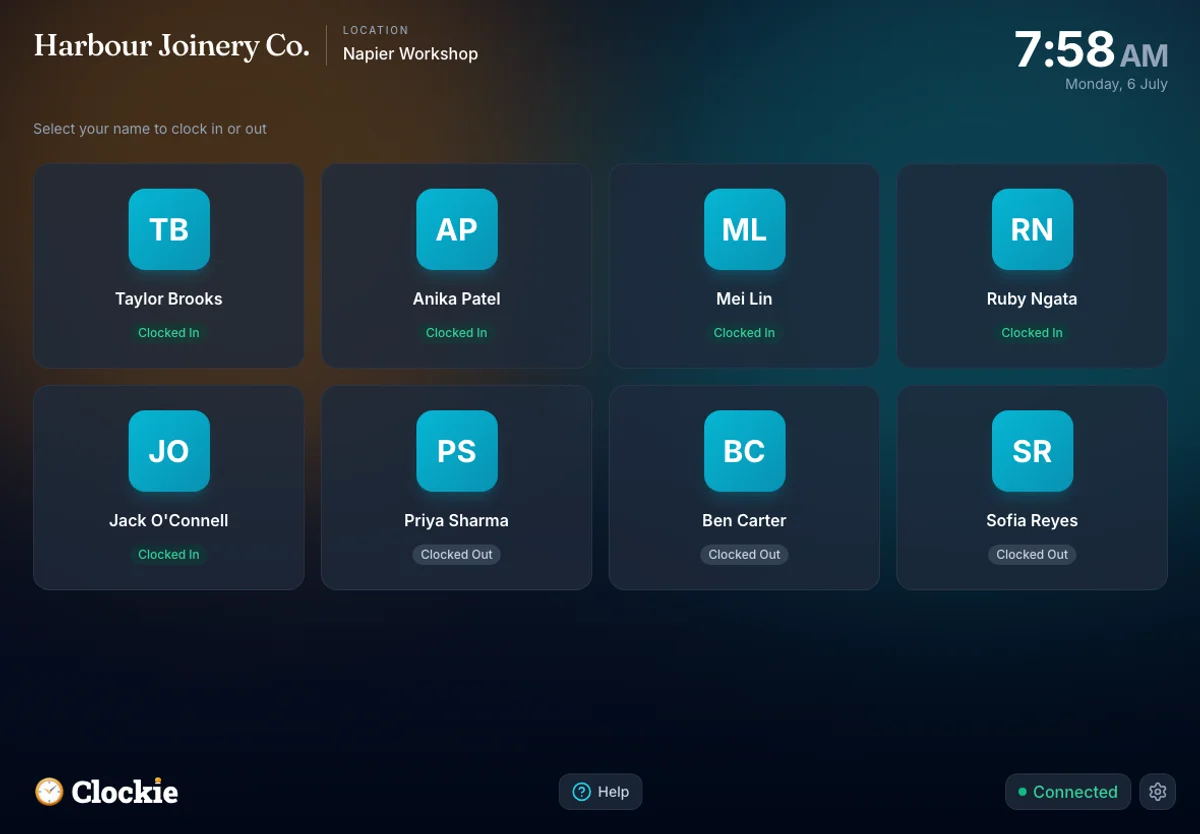
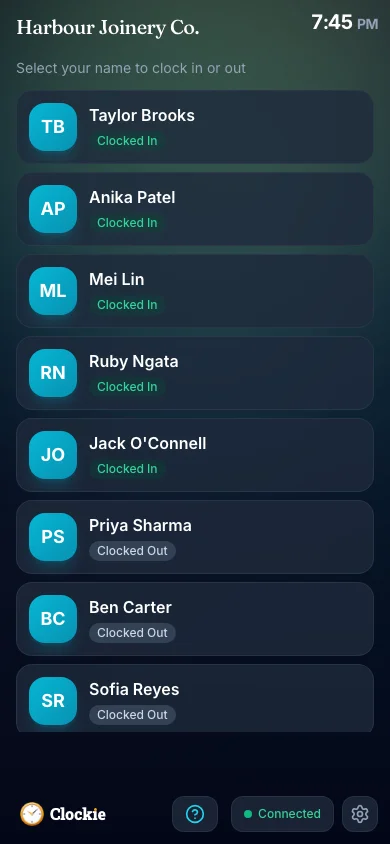
Your team clocks in and out on a shared tablet or their own phone, verified by PIN, photo or face, or tap-and-go with an optional badge or QR in place of PIN and face checks. Shifts queue on the device when the connection drops, then sync.
You approve the period
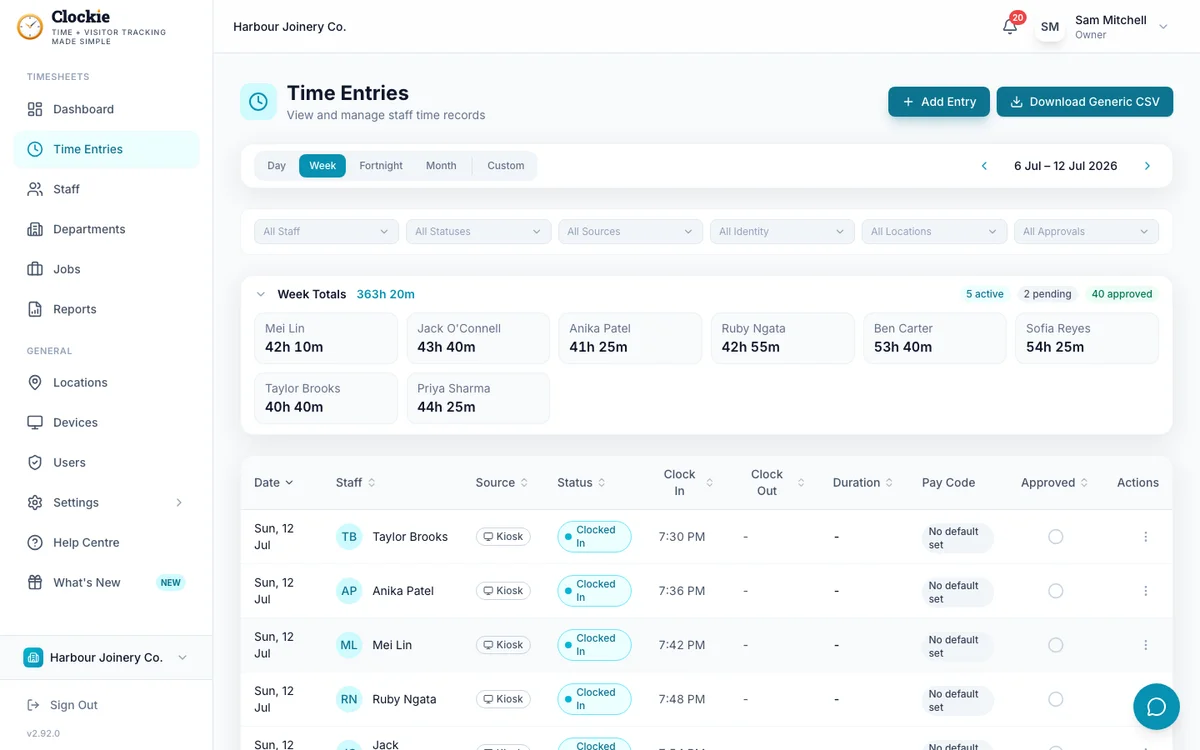
Review the timesheets with your break-deduction and rounding rules applied. Only approved, clocked-out entries reach the file.
Export the Flexi-CSV
One click writes badge, pay code, units, date, cost centre and comment as one row per shift. Anyone missing a badge is named to you before the download.
Import in SmoothPay
In SmoothPay, choose Payrun, then Import, then Flexi-CSV, pick “timesheet data in rows”, map each column once and process. Import each period’s file only once.
How the hours reach SmoothPay
Approved hours in Clockie
Verified clock-ins with breaks, rounding and pay codes already applied.
Timesheet file
.csv
SmoothPay pay run
Receives a timesheet file already shaped to its import spec.
Clockie writes the file to SmoothPay's own import spec, so the upload is the whole job — no reshaping columns in a spreadsheet first.
What the SmoothPay export covers
Built to the transaction format in SmoothPay goPayroll’s published Flexi-CSV import specification. Here is exactly what Clockie writes, what you map at import, and the two SmoothPay behaviours to watch.
- File type
- Comma-delimited .csv with no header row, one row per shift, named smoothpay-timesheets-<date>.csv. SmoothPay’s importer asks you to identify each column as the file loads, so header names are never needed.
- Columns written
- Badge, pay code, units, date, cost centre and comment — the spec’s recommended transaction layout, with the columns Clockie has data for.
- Employee matching
- The badge column carries each person’s Employee Payroll ID from Clockie, which must equal their badge in SmoothPay. The specification makes badge the one mandatory match key.
- Pay codes
- A Clockie pay code’s export value becomes the SmoothPay pay code. SmoothPay matches it against your own work, leave, allowance and sundry-deduction codes first, then falls back to its documented alias codes — T1 ordinary, T2 overtime, ALH and ALD annual leave in hours or days, SLD sick leave in days, PTD public holiday taken, ALT alternative days, ACC and UPL. Entries with no pay code use T1.
- Units and dates
- Units are decimal hours after your break-deduction and rounding rules run. Dates are written DD/MM/YYYY in your business timezone, so each row lands on the day it was worked rather than the period end.
- Cost centres
- Your department’s payroll code fills the cost centre column. SmoothPay matches cost centres on code and creates one if it does not find a match, so keep the codes in step with your SmoothPay setup.
- Rates
- No rate column is written. SmoothPay documents that when no rate is supplied it applies the employee’s default or last-used rate, which is what you want for clocked hours.
- Importing is additive
- SmoothPay documents that importing is additive — importing the same data twice without clearing gives the employee double entries. Import each period’s file once, and clear the pay inputs before re-importing a corrected file.
- Terminated staff
- SmoothPay documents that an employee is re-activated if the only match is a terminated employee record, and advises against leaving terminated staff in import files. Mark leavers inactive in Clockie before you export, and check the import summary if someone finished mid-period.
- Validation Clockie runs
- Only approved entries with a clock-out are exported. Staff without an Employee Payroll ID are left out of the file and named to you. An entry whose pay code has no SmoothPay export value is also held back, because SmoothPay would otherwise fall back to the T1 ordinary-time alias and pay leave as ordinary hours.
Why teams pair Clockie with SmoothPay
Dated rows, not period totals
Every shift keeps its own date, so SmoothPay receives the days as they were worked — which matters when average daily pay and days paid are calculated from your history.
Leave in the units NZ law expects
Point a Clockie leave pay code at SmoothPay’s alias for the units you want — hours, days or weeks — and the alias does the conversion in SmoothPay, instead of you reworking figures in a spreadsheet.
Unmapped codes stop at Clockie
An entry with a pay code you have not mapped is held out of the file and named to you, so it never reaches SmoothPay as ordinary time by fallback.
Hours you can prove
PIN, photo or face verification at clock-in, automatic NZ break rules and an approval step mean the units in the file reflect what was actually worked, with a full audit trail in Clockie.
About SmoothPay goPayroll
SmoothPay goPayroll is a payroll product used across New Zealand, Australia and the Pacific, acquired by the NZX-listed PaySauce in June 2021 and still running under its own name with its own help desk and manual set. It publishes a Flexi-CSV importer for bringing timesheets in from third-party time and attendance systems, along with a goPayroll API for external systems.
SmoothPay integration questions
Does Clockie work with SmoothPay goPayroll?
Yes. Clockie exports approved timesheets in the transaction format SmoothPay’s Flexi-CSV importer documents — badge, pay code, units, date, cost centre and comment, one row per shift. You load the file under Payrun, Import, Flexi-CSV, map the columns and process your pay.
What happens if I import the same file twice?
You get double entries. SmoothPay documents that importing is additive: importing the same data twice without clearing gives the employee two sets of hours. This is a SmoothPay behaviour, not something the file can prevent, so treat each period’s export as a one-shot import. If you need to re-import a corrected file, clear the employee’s pay inputs in SmoothPay first.
What about staff who have finished?
Take them out of the pay period before you export. SmoothPay documents that an employee will be re-activated if the only match is against a terminated employee record, and its own guidance is not to leave terminated staff in import files. Marking a leaver inactive in Clockie keeps them out of future exports.
Why is there no header row in the file?
Because SmoothPay does not need one. Its Flexi-CSV importer shows you the first record and asks you to identify what each column holds, so the mapping is done in SmoothPay rather than by matching header text. You set it once and it stays set for that layout.
How do I get leave and overtime onto the right pay codes?
Give each Clockie pay code a SmoothPay export value. Use the code from your own SmoothPay work or leave code list, or one of SmoothPay’s alias codes — for example ALH for annual leave taken in hours, ALD for days, SLD for sick leave in days or T2 for overtime. Any entry carrying a pay code without an export value is held out of the file and listed to you, so nothing gets paid as ordinary time by accident.
Is this a direct API sync with SmoothPay?
No, it is a formatted CSV export. SmoothPay publishes a goPayroll API as well, but Clockie has not built or applied for that connection, so the honest description of what ships today is the Flexi-CSV file. Clockie does run live API syncs with Xero Payroll and Crystal Payroll.
What does the SmoothPay export cost?
Nothing extra. Payroll exports are included in every Clockie plan, from $29 NZD per month excluding GST with five staff included, then $2 per extra staff member.
Paid through PaySauce rather than SmoothPay? PaySauce uses a different worksheet file format, matched on IRD number. Read the PaySauce integration guide.
Send verified hours to SmoothPay
Try Clockie free for 14 days. No credit card. Verified clock-ins, automatic NZ breaks, and a Flexi-CSV ready to map and import.
No credit card • Cancel anytime • NZ-based support