
A time clock that exports straight into Smartly
Clockie turns verified clock-ins into approved timesheets, then writes them in Smartly’s own timesheet-import format — employee codes matched, pay rates mapped and days paid counted. Payroll day becomes an import, not an afternoon of typing.

Smartly
Receives a timesheet file already shaped to its import spec.
- Export format
- Smartly #50 pay lines (.csv)
- Employee matching
- Smartly employee code
- Pay rates
- Pay Rate Numbers via pay codes
- Days paid
- Counted from distinct shift dates
How it works
From clock-in to pay run in four steps — the hours do the walking.
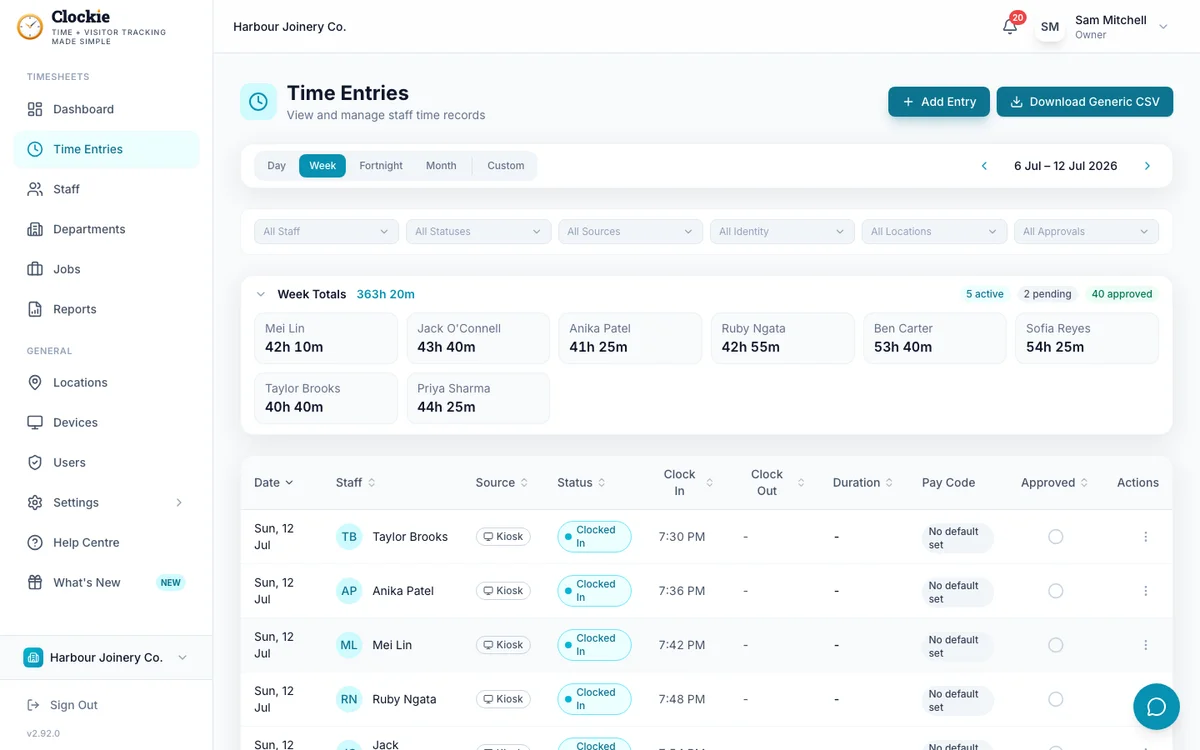
Staff clock in
Your team clocks in and out on the shared tablet or their phone — verified by PIN, photo or face, or tap-and-go with an optional badge or QR in place of PIN and face checks. Offline-first, so flaky Wi-Fi never loses a shift.
You approve the hours
Review timesheets with NZ rest and meal breaks already applied. Only approved, clocked-out entries ever make the export file.
Export the Smartly CSV
One click builds a file in Smartly’s timesheet-import format. Staff missing a Smartly employee code are named to you first, not silently dropped into a broken file.
Import into Smartly
Upload the file through Smartly’s timesheet import and run your pay as normal. Smartly flags any errors or warnings before the import proceeds.
How the hours reach Smartly
Approved hours in Clockie
Verified clock-ins with breaks, rounding and pay codes already applied.
Timesheet file
.csv
Smartly pay run
Receives a timesheet file already shaped to its import spec.
Clockie writes the file to Smartly's own import spec, so the upload is the whole job — no reshaping columns in a spreadsheet first.
What the Smartly export covers
Built from the worked examples in Smartly’s published third-party timesheet-import help article — here is exactly what Clockie writes, and what it checks before you download.
- File type
- Comma-delimited .csv of #50 “Normal Pay” lines with no header row, named smartly-timesheets-<date>.csv.
- Columns written
- Employee Code, Pay Rate Number, Hours, Department Quick Code, Number of Days Paid.
- Employee matching
- Each person’s Employee Payroll ID in Clockie must equal their employee code in Smartly — that code keys every line.
- Hours
- Decimal hours, totalled per employee, pay rate and department, after your break-deduction and rounding rules are applied.
- Pay rates
- A Clockie pay code’s export value maps to Smartly’s Pay Rate Number (1, 2 or 3). Entries without a pay code default to rate 1.
- Departments
- Your department’s payroll code fills the Department Quick Code column, for employees costed at pay time. Left empty when the department has no code.
- Days paid
- Distinct shift dates per employee, written on their last #50 line (earlier lines carry 0) — so Smartly sums a multi-rate employee’s days exactly once.
- Validation Clockie runs
- Only approved entries with a clock-out are exported. Staff without an employee code are left out of the file and listed to the admin by name.
Why teams pair Clockie with Smartly
No re-keying on pay day
The file lands in Smartly’s own import format, so approved hours go from Clockie to a finished Smartly import in two clicks — no spreadsheet surgery in between.
Fewer import errors
Employee codes are checked before the file is built, and anyone missing one is named to you up front — so a half-matched file never reaches Smartly’s importer.
Multi-rate and department costing handled
Each employee, pay rate and department combination gets its own #50 line, with days paid summed once per person — the fiddly part of Smartly imports, done for you.
Verified hours behind every line
PIN, photo or face verification at clock-in and automatic NZ break rules mean the hours Smartly imports reflect what was actually worked — with a full audit trail in Clockie.
About Smartly
Smartly is a Datacom-owned payroll and people-management platform used by more than 22,000 New Zealand businesses, formerly known as SmartPayroll. It supports third-party time and attendance systems through a published CSV timesheet import, with weekly, fortnightly and monthly pay cycles.
Smartly integration questions
Does Clockie integrate with Smartly payroll?
Yes. Clockie exports approved timesheets as a CSV in Smartly’s third-party timesheet-import format — #50 pay lines carrying employee codes, pay rate numbers, hours, department quick codes and days paid. You upload the file in Smartly and run your pay as normal.
Is the Smartly connection a direct API sync?
No — it’s a formatted CSV export. Smartly publishes no public developer API; its documented path for third-party time and attendance systems is the CSV timesheet import, and that is exactly the format Clockie writes.
How are employees matched between Clockie and Smartly?
By employee code. You store each person’s Smartly employee code as their Employee Payroll ID in Clockie. Anyone missing a code is excluded from the export and named to you before the file is built, so mismatches surface in Clockie, not in Smartly’s importer.
Can it handle multiple pay rates and department costing?
Yes. Clockie pay codes map to Smartly Pay Rate Numbers, and hours are totalled per employee, pay rate and department — each combination gets its own #50 line, with your department’s code in the Department Quick Code column. Days paid are written once per employee, the way Smartly expects.
Are breaks and rounding applied before the export?
Yes. Hours are exported after Clockie applies your break-deduction and rounding rules, and only approved entries with a clock-out make the file — so what Smartly imports is what you signed off.
How much does the Smartly integration cost?
Nothing extra. The Smartly export is included in every Clockie plan — from $29 NZD/month (excl GST) including 5 staff, then $2 per extra staff member.
Clockie also syncs live to Xero Payroll and Crystal Payroll, and exports formatted files for the other NZ payroll systems. See all integrations.
Send verified hours into Smartly
Try Clockie free for 14 days. No credit card. Verified clock-ins, automatic NZ breaks, and a Smartly-ready export in one click.
No credit card • Cancel anytime • NZ-based support