
Approved shifts, formatted for PayHero
Clockie exports your approved timesheets in the layout PayHero’s timesheet import expects — employee names, work names, start and end times, break duration and notes. Import the file and carry on with your pay.

PayHero
Receives a timesheet file already shaped to its import spec.
- Export format
- PayHero timesheet import (.csv)
- Employee matching
- Employee display name
- Date format
- D/MM/YYYY
- Times
- Start, end and break duration per shift
How it works
From clock-in to pay run in four steps — the hours do the walking.
Staff clock in
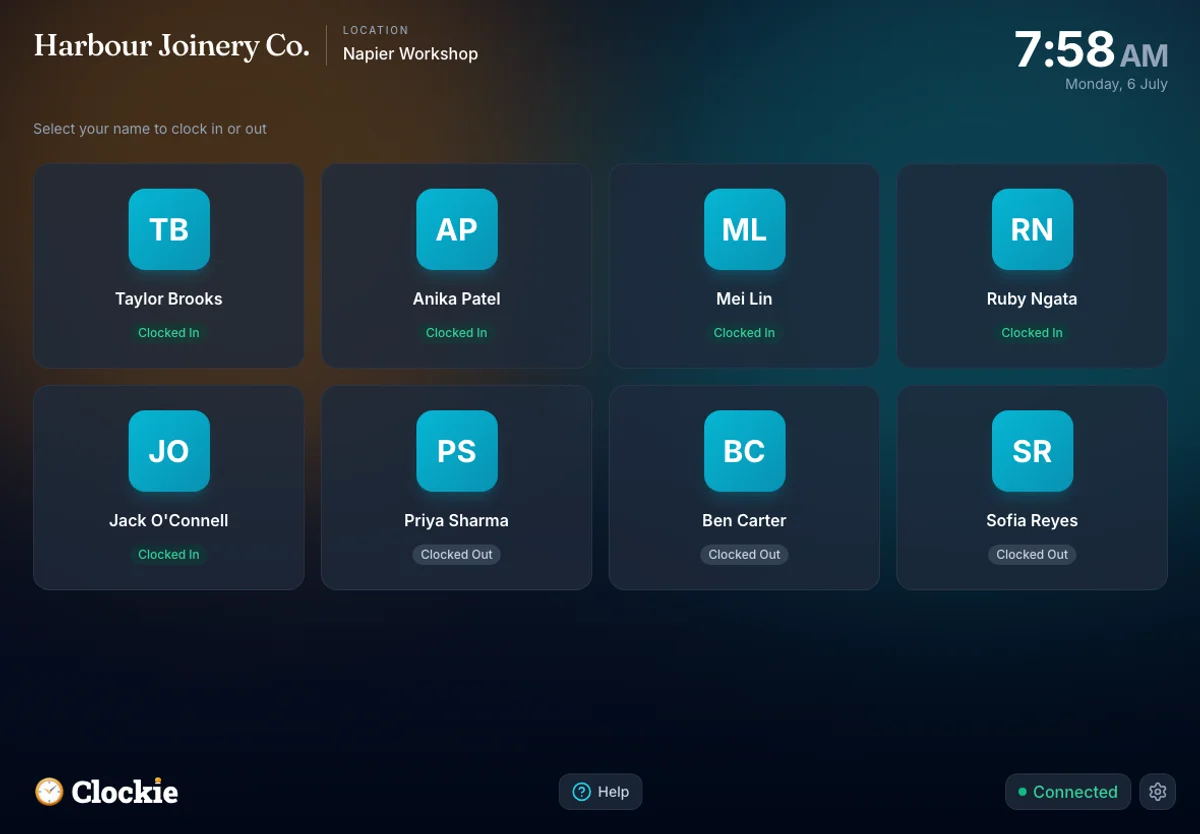
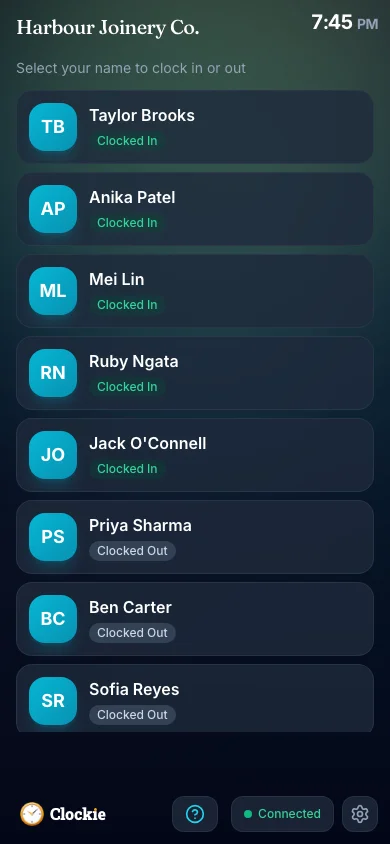
Your team clocks in and out on a shared tablet or their own phone, verified by PIN, photo or face, or tap-and-go with an optional badge or QR in place of PIN and face checks. Offline-first, so a dropped connection never loses a shift.
You approve the hours
Review the period with break deductions applied to NZ rules. Only approved, clocked-out entries make it into the export.
Export the PayHero file
One click writes a CSV in PayHero’s timesheet-import layout, with each shift on its own row and the work name taken from the entry’s pay code.
Import into PayHero
Upload the file through PayHero’s timesheet import screen, review the rows it reports, and run your pay as normal.
How the hours reach PayHero
Approved hours in Clockie
Verified clock-ins with breaks, rounding and pay codes already applied.
Timesheet file
.csv
PayHero pay run
Receives a timesheet file already shaped to its import spec.
Clockie writes the file to PayHero's own import spec, so the upload is the whole job — no reshaping columns in a spreadsheet first.
What the PayHero export covers
Built column-for-column from PayHero’s published timesheet-import article. Here is exactly what Clockie writes, and what it checks before you download.
- File type
- Comma-delimited .csv with a header row, one row per shift, named payhero-timesheets-<date>.csv.
- Columns written
- Employee, Work Name, Date, Start Time, End Time, Break Duration and Notes.
- Employee matching
- The Employee column carries each person’s full display name, which PayHero matches exactly — so names in Clockie and PayHero need to agree, including capitalisation.
- Work name
- Taken from the pay code applied to the entry, so ordinary time, overtime and other work types land on the right PayHero work. Entries without a pay code export as Standard Hours.
- Dates and times
- Dates are written D/MM/YYYY and times as 24-hour start and end values, all in your business timezone.
- Breaks
- Break duration is written in decimal hours, calculated from your Clockie break-deduction rules, and left blank when no break applies.
- Notes
- Any note recorded on the time entry travels with the row for context in PayHero.
- Validation Clockie runs
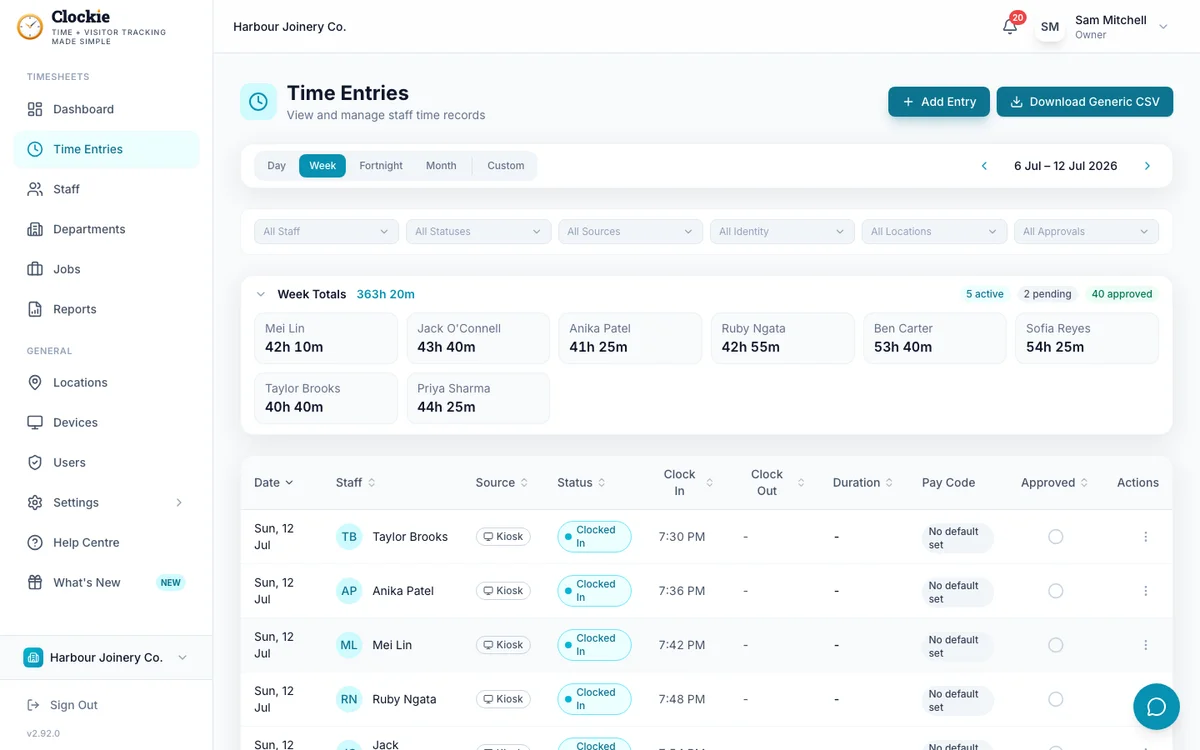
- Only approved entries with a clock-out are exported, so unapproved or still-running shifts can never reach the import file.
Why teams pair Clockie with PayHero
A file PayHero accepts first time
The columns, date format and break units match PayHero’s published import layout, so the file goes in without spreadsheet surgery beforehand.
Work names come from your pay codes
Map a Clockie pay code to the matching PayHero work name once, and every export puts overtime and special rates on the right work.
Kiosk verification behind every row
PIN, photo or optional face verification at clock-in means the hours you import are the hours actually worked, with a full audit trail left in Clockie.
More than a time clock
The same tablet handles visitor and contractor sign-in, health and safety questions and evacuation reporting, which payroll software does not set out to do.
About PayHero
PayHero is a New Zealand payroll product from FlexiTime, covering PAYE, KiwiSaver, Holidays Act leave and payday filing for NZ employers. It documents a timesheet import for bringing hours in from other systems, which is the format Clockie writes.
PayHero integration questions
Does Clockie work with PayHero?
Yes. Clockie exports approved timesheets as a CSV in PayHero’s documented timesheet-import format, carrying employee names, work names, dates, start and end times, break duration and notes. You import the file in PayHero and run your pay as normal.
How are employees matched between Clockie and PayHero?
By display name. PayHero matches the Employee column against the employee’s name in your PayHero company, so the names need to agree exactly, including capitalisation. Check them once when you set up and imports stay clean.
How do overtime and other work types come across?
Through pay codes. Give a Clockie pay code the matching PayHero work name and any entry stamped with that code exports against that work. Entries with no pay code export as Standard Hours.
Are breaks handled correctly for NZ rules?
Yes. Clockie applies your break-deduction rules to each shift and writes the break duration in decimal hours in the column PayHero expects, so paid hours and breaks arrive the way you signed them off.
Can I export just one pay period?
Yes. Choose the period on the Reports or Time Entries screen and export exactly those approved entries. You can also filter to a single team or department before exporting.
What does the PayHero export cost?
Nothing extra. Payroll exports are included in every Clockie plan, from $29 NZD per month excluding GST with five staff included, then $2 per extra staff member.
Comparing Clockie with PayHero’s own time tools? See the side-by-side breakdown. See the side-by-side comparison.
Send verified hours to PayHero
Try Clockie free for 14 days. No credit card. Verified clock-ins, automatic NZ breaks, and a PayHero-ready file in one click.
No credit card • Cancel anytime • NZ-based support