
Setup guide
Connect Crystal Payroll to Clockie
Send approved hours and leave from Clockie into Crystal's Time & Income screen, without re-keying. There are four steps in Crystal, then you connect in Clockie.
- Who: someone with admin access to Crystal Payroll
- Before you start: Crystal approves new API accounts, so allow time before your next pay run
Part 1: In Crystal
Do these before you click Connect in Clockie.
In the Crystal API portal
Get a Crystal API account
Go to the Crystal API site and click API Application Sign Up. Crystal emails your login details once your account is approved.
Already have an account? Click Log in to API Account instead.
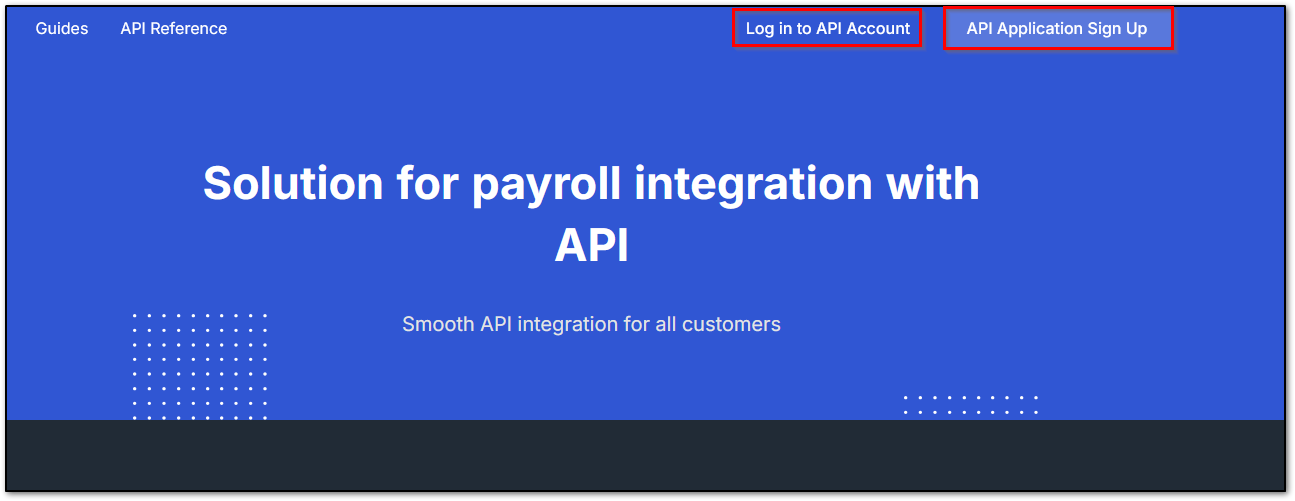
In the Crystal API portal
Give Clockie permission
Log in to the Crystal API portal, then click Permission and Create.
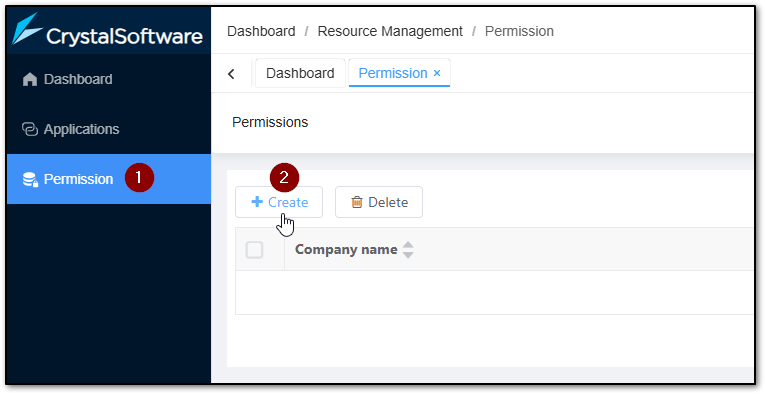
Fill in the form with exactly these values:
- User Email
richard@kiwidigital.biz- Company Name
Clockie- Permissions
- All Permissions
- Reason
Integration
Enter Clockie's integration email exactly as shown, not your own. If the email is different, Crystal can't link the permission to Clockie.
Tick Terms of Service, then click Save & Send Email.
By email to Crystal
Ask Crystal to turn on staff and leave accessRecommended
Crystal turns on the Employee and Leave Balance API endpoints on request. Email support@crystalpayroll.com and ask them to enable both for your company.
Without them, hours still send. You'll match staff using Payroll IDs, and leave balances won't show in Clockie.
Write the email to CrystalIn Crystal Payroll
Turn on the API timesheet import
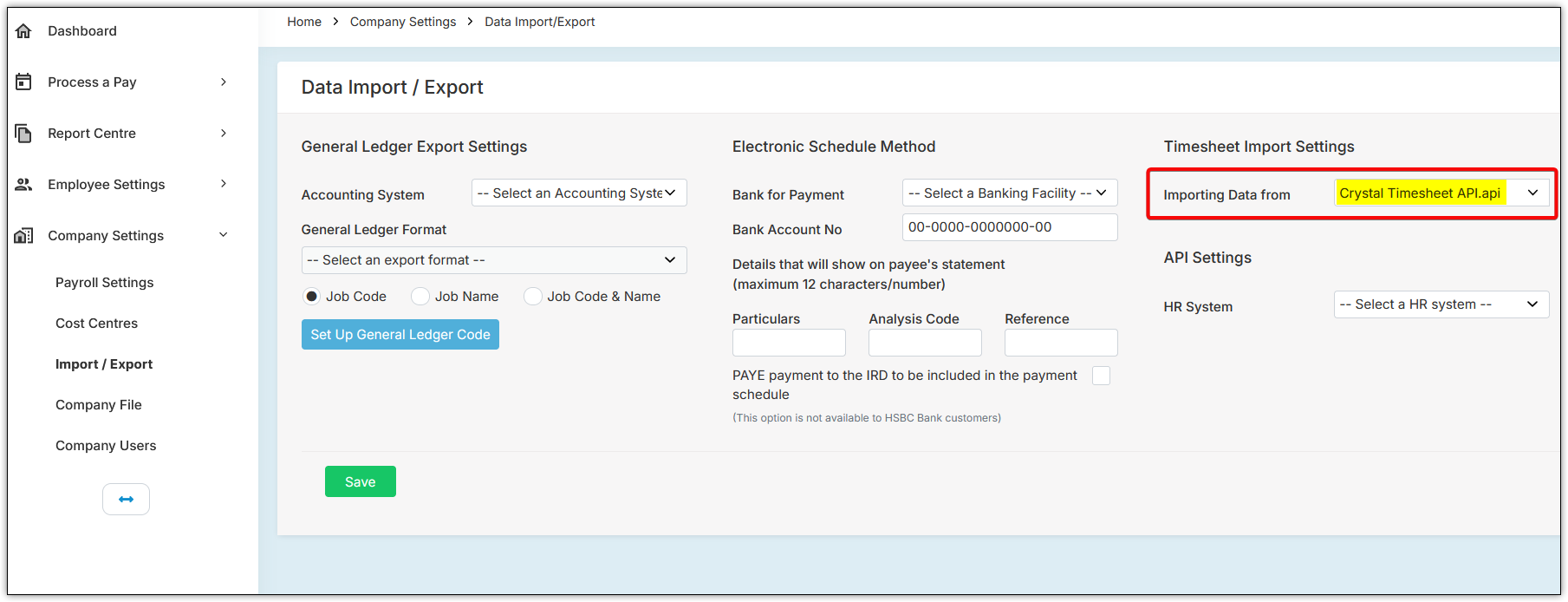
Company SettingsImport / Export
Under Timesheet Import Settings, set Importing Data from to Crystal Timesheet API.api, then click Save.
Part 2: In Clockie
Settings, then Integrations, then Crystal Payroll.
Enter your company code and connect
Enter your Crystal company code and click Connect with Crystal Payroll. When Crystal asks, sign in with your Crystal API login and approve Clockie.
Make your staff list available
Employee SettingsEmployee Details
If Crystal has turned on staff access, click Import & Update Employee in Crystal. Then open the Employees tab in Clockie's Crystal settings to match your staff.

Each pay run
What to do in Crystal after Clockie sends hours.
Bring the hours into Crystal
Process a PayTime & IncomeData Import
After Clockie sends the hours, open Crystal and run Data Import. The dates you sent must be inside Crystal's current pay period, or Crystal won't import them.
Leave balances update when you approve the pay
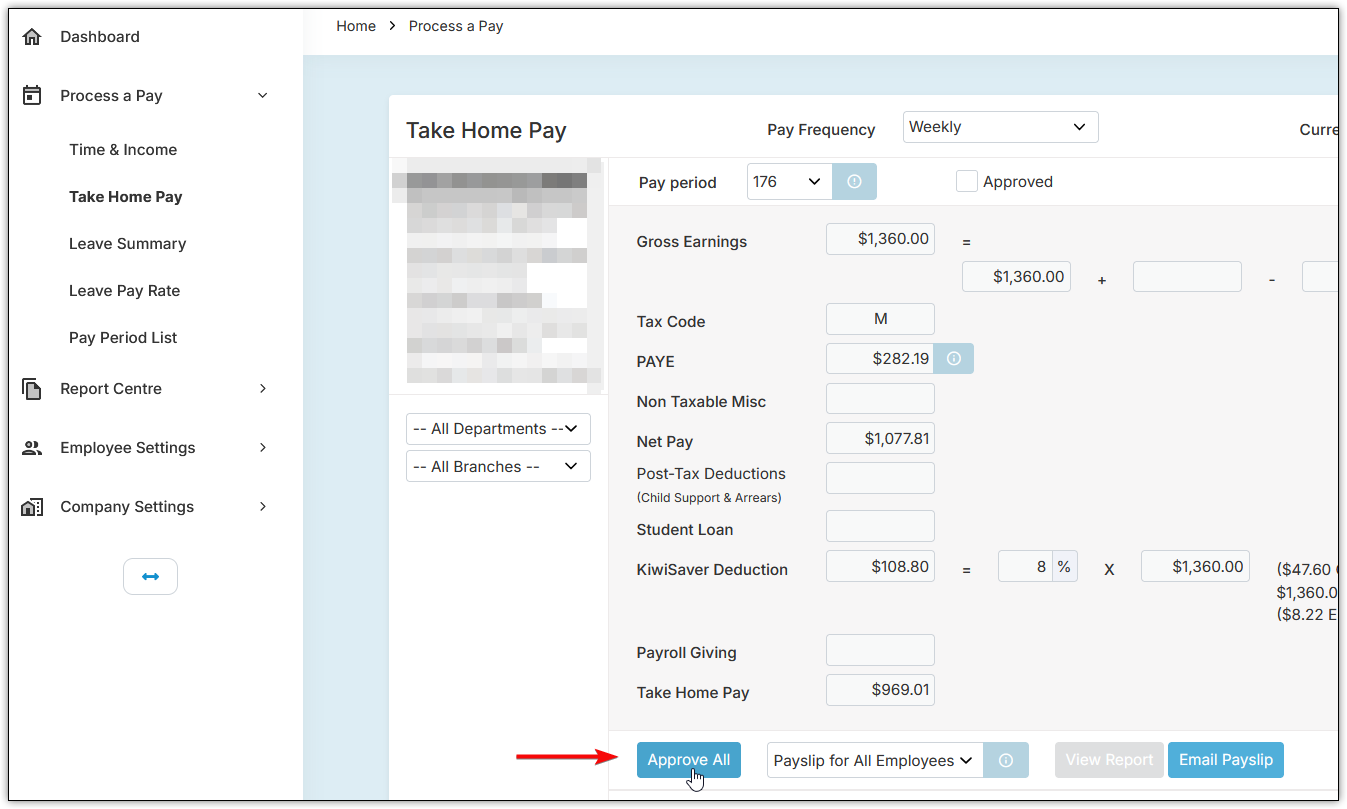
Process a PayTake Home Pay
When you approve Take Home Pay, Crystal sends the latest leave balances to the Crystal API. Clockie picks them up on its next sync.
Questions
Is the Crystal API login the same as my Crystal Payroll login?
No. The Crystal API account is a separate login on api.crystalsoftware.nz. You register for it once, and Crystal approves it before you can log in.
Do I need to give Clockie my Crystal password, Client ID or Client Secret?
No. You give Clockie permission in the Crystal API portal, then sign in to Crystal when you click Connect in Clockie. Clockie never asks for your Crystal passwords or secrets.
Clockie says the hours were sent, but nothing shows in Crystal
In Crystal, run Process a Pay, then Time & Income, then Data Import. Check that the dates you sent are inside Crystal's current pay period, and that Importing Data from is set to Crystal Timesheet API.api under Company Settings, then Import / Export.
Clockie says Crystal employees or leave balances are unavailable
Crystal turns on the Employee and Leave Balance endpoints on request. Email support@crystalpayroll.com and ask them to enable both. Until then, hours still send and staff are matched by Payroll ID.
Who do I contact for help?
For the Crystal API portal or Crystal Payroll settings, contact Crystal on 0800 799 899 or support@crystalpayroll.com. For anything in Clockie, email hello@clockie.nz.